Do I need a thermal copier to use this system?
Do I need a thermal copier to use this system?
No. This inkjet stencil system completely eliminates the need for thermal transfer machines or carbon paper. You can print high-definition designs directly from your computer, tablet, or smartphone.
Can I use standard printer ink with this EcoTank?
Can I use standard printer ink with this EcoTank?
No. To ensure safe and effective stencil transfers, you must use the specialized tattoo stencil ink included. Standard inkjet ink is not formulated for skin application and will not transfer a stencil correctly.
What type of paper should I use for the best results?
What type of paper should I use for the best results?
We recommend using Pacon Tracing Paper or specialized inkjet stencil paper. This allows the ink to sit on the surface for a crisp, smudge-proof transfer rather than soaking into the fibers like standard copy paper.
Does this printer support wireless printing from an iPad?
Does this printer support wireless printing from an iPad?
Yes! The Epson EcoTank supports wireless printing via Wi-Fi. You can send your designs directly from apps like Procreate on your iPad or tablet for a seamless, cable-free workflow.
How do I prevent the print head from clogging?
How do I prevent the print head from clogging?
Since stencil ink is thicker than standard ink, we recommend printing at least one small design or a "test page" every 2-3 days. This keeps the ink flowing and ensures your print head stays clear and ready for work.
How do I connect my printer to my network?
How do I connect my printer to my network?
Since the Epson M1120 does not have a screen, you will use the buttons on the control panel to connect. Choose the method below that works best for you. Method 1: Using the WPS Button (Fastest) Use this if your internet router has a physical button labeled "WPS." Press and hold the WPS button on your router until its light starts flashing. Within 2 minutes, press and hold the Wi-Fi button on the printer for about 5 seconds. The Wi-Fi and Wi-Fi Direct lights will flash alternately while connecting. When the Wi-Fi light (green) stays solid, the printer is connected. Method 2: Using the Epson Smart Panel App (Easiest for Mobile) Use this to set up the printer using your smartphone. Download the Epson Smart Panel app from the App Store or Google Play. Ensure your phone's Bluetooth and Wi-Fi are turned ON. Open the app and follow the step-by-step instructions. It will automatically detect the printer and connect it to your network. Method 3: Using a Computer (USB Setup) Use this if you prefer using a PC or Mac. Go to epson.sn on your computer. Enter M1120 and download the software package. Run the installer and select Wireless connection. If prompted, connect the printer to your computer with a USB cable temporarily. The software will automatically "push" your Wi-Fi settings to the printer. Method 4: Wi-Fi Direct (No Router) Use this to print directly from your device to the printer without a router. Hold down the Wi-Fi button and the Network Status [i] button together until the lights flash. Release the buttons. The Wi-Fi Direct light will eventually stay on. Press and hold the Network Status [i] button for 7 seconds to print a status sheet. On your phone/PC, find the Wi-Fi name (SSID) and Password listed on that sheet to connect directly. Troubleshooting Tip If you have trouble connecting, press the Network Status [i] button once. The printer will print a "Connection Report" with an error code to help identify the issue. Watch the Tutorial Video
Epson
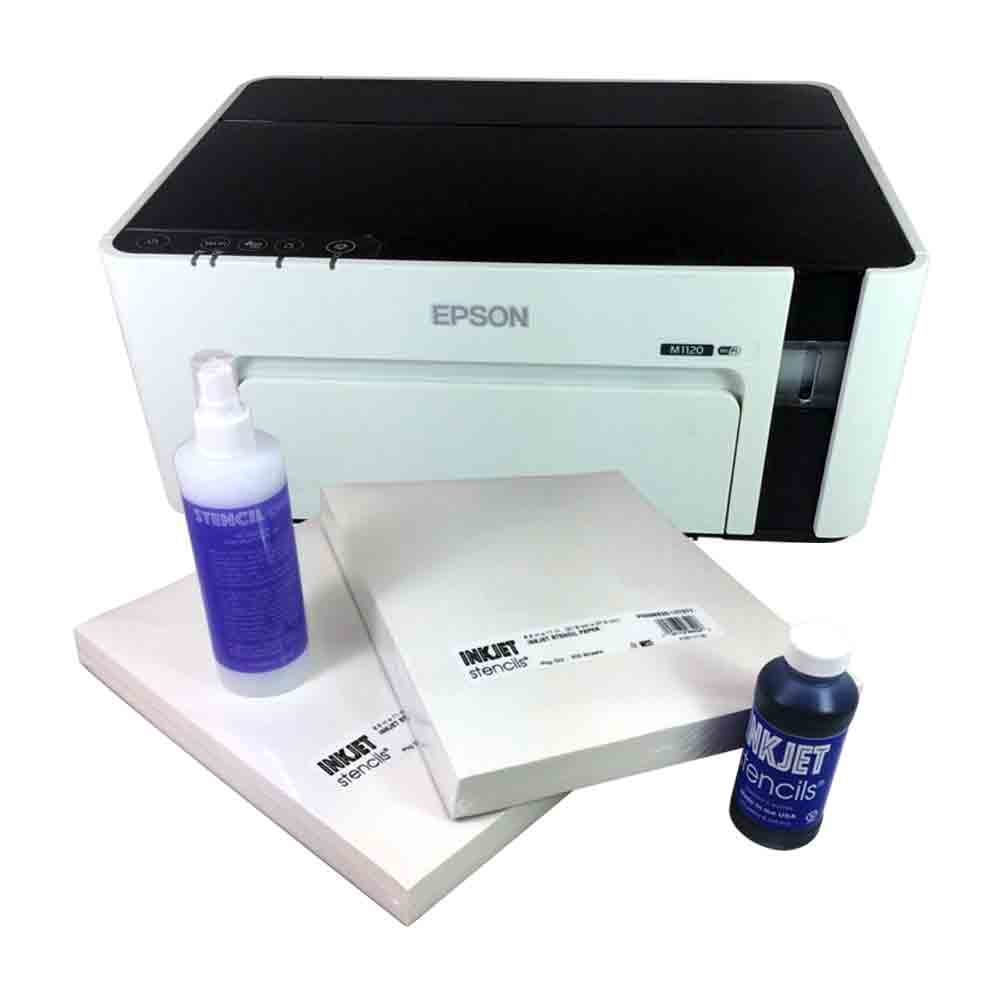
Epson EcoTank Tattoo Stencil Printer Combo Package
Epson EcoTank Tattoo Stencil Printer Combo Package
Couldn't load pickup availability
Epson EcoTank Tattoo Stencil Printer Combo Package – Professional Tattoo Stencil System
Upgrade your tattoo studio with the Epson EcoTank Tattoo Stencil Printer Combo Package, the ultimate solution for high-resolution tattoo stencil printing. Designed for professional tattoo artists, this advanced inkjet stencil system delivers precise, smudge-free stencil transfers for superior tattoo designs.
Why Choose the Epson EcoTank Tattoo Stencil System?
- Crisp, High-Definition Stencils – Achieve ultra-sharp stencil details for intricate tattoo designs.
- Inkjet Stencil Printing Technology – Works seamlessly with Epson-compatible tattoo stencil ink, eliminating the need for carbon paper.
- No Thermal Copier Required – Skip the hassle of thermal transfer machines and print directly from your computer or tablet.
- Long-Lasting & Smudge-Proof Transfers – Ensures clean, durable stencils that hold up throughout the tattoo session.
- Cost-Effective & Eco-Friendly – Save money with refillable EcoTank technology, reducing waste and ink costs.
What’s Included in the Tattoo Stencil Printer Combo Package?
- Epson EcoTank Inkjet Printer – Optimized for tattoo stencil applications.
- Professional-Grade Tattoo Stencil Ink – Specially formulated for high-contrast tattoo stencils.
-
Essential Stencil Prep Supplies – Ensures a smooth transfer process for flawless results.
-
2 Reams of Pacon Stencil Paper (500 sheets per ream) – for clean, crisp, high-definition stencils.
Perfect for Professional Tattoo Artists & Shops
Ditch the outdated thermal printers and unreliable hand-tracing methods. With the Epson Inkjet Stencil System, you can print tattoo stencils effortlessly, speeding up your workflow while improving design accuracy.
Join the future of tattoo stenciling! Order your Epson EcoTank Tattoo Stencil Printer Combo Package today and experience precision, efficiency, and professional-grade results like never before.
Share